Enable / Disable Workspace
Workspaces can be enabled or disabled based on requirements. Disabling a Workspace puts it into a read-only state, preserving all existing content while preventing any new work. Enabling it restores full functionality.
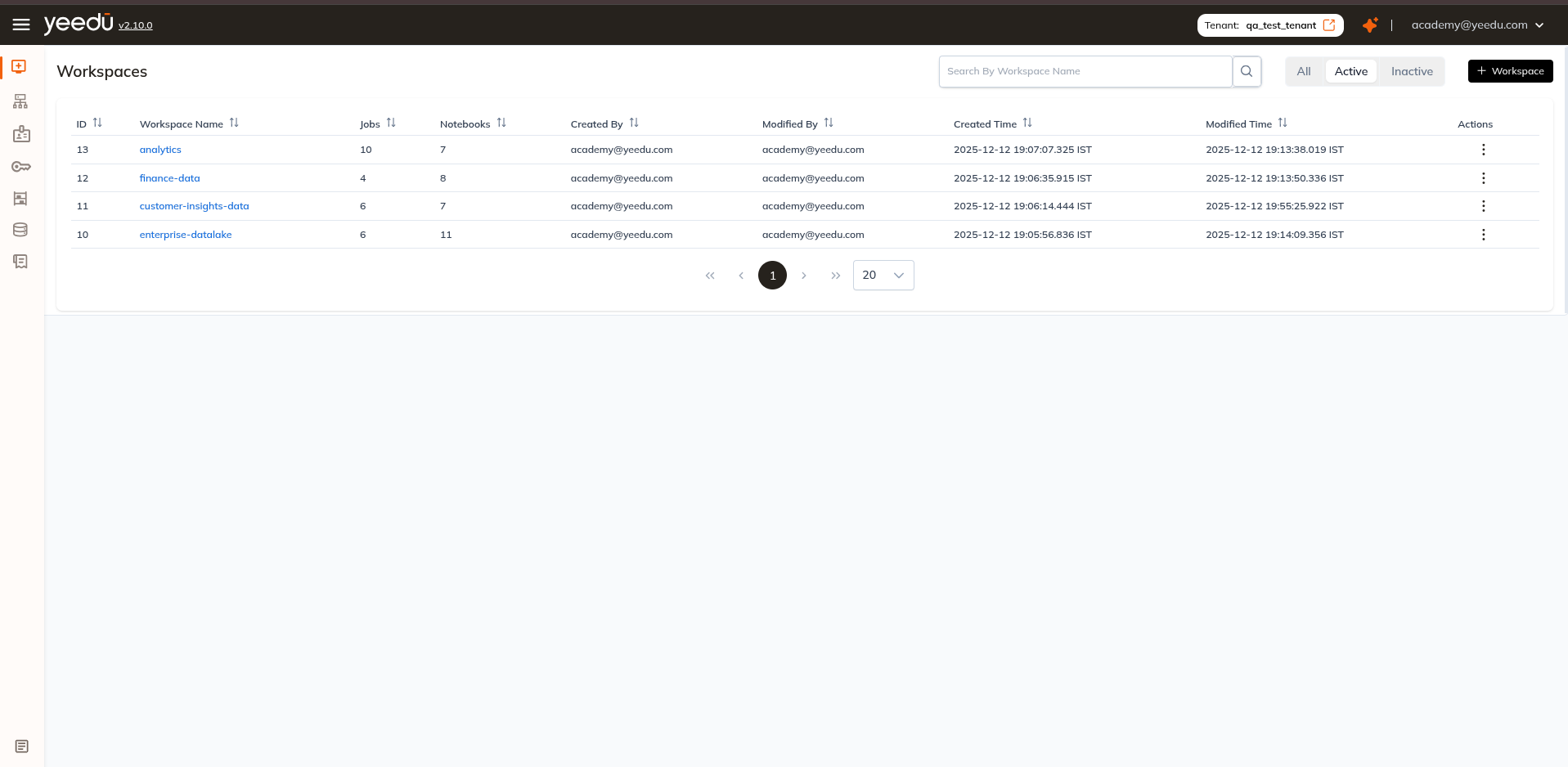
The Workspace Dashboard provides flexible controls to view, manage, and update workspace states.
Workspace Dashboard Filters
At the top of the Workspace Dashboard, users can toggle between the following filters:
- All – Displays both active and inactive workspaces.
- Active – Shows only workspaces currently in active state.
- Inactive – Lists workspaces that have been disabled.
These filters enable users to quickly navigate and manage workspace availability.
Disable (Inactivate) a Workspace
To disable a workspace:
-
Navigate to the workspace you want to disable.
-
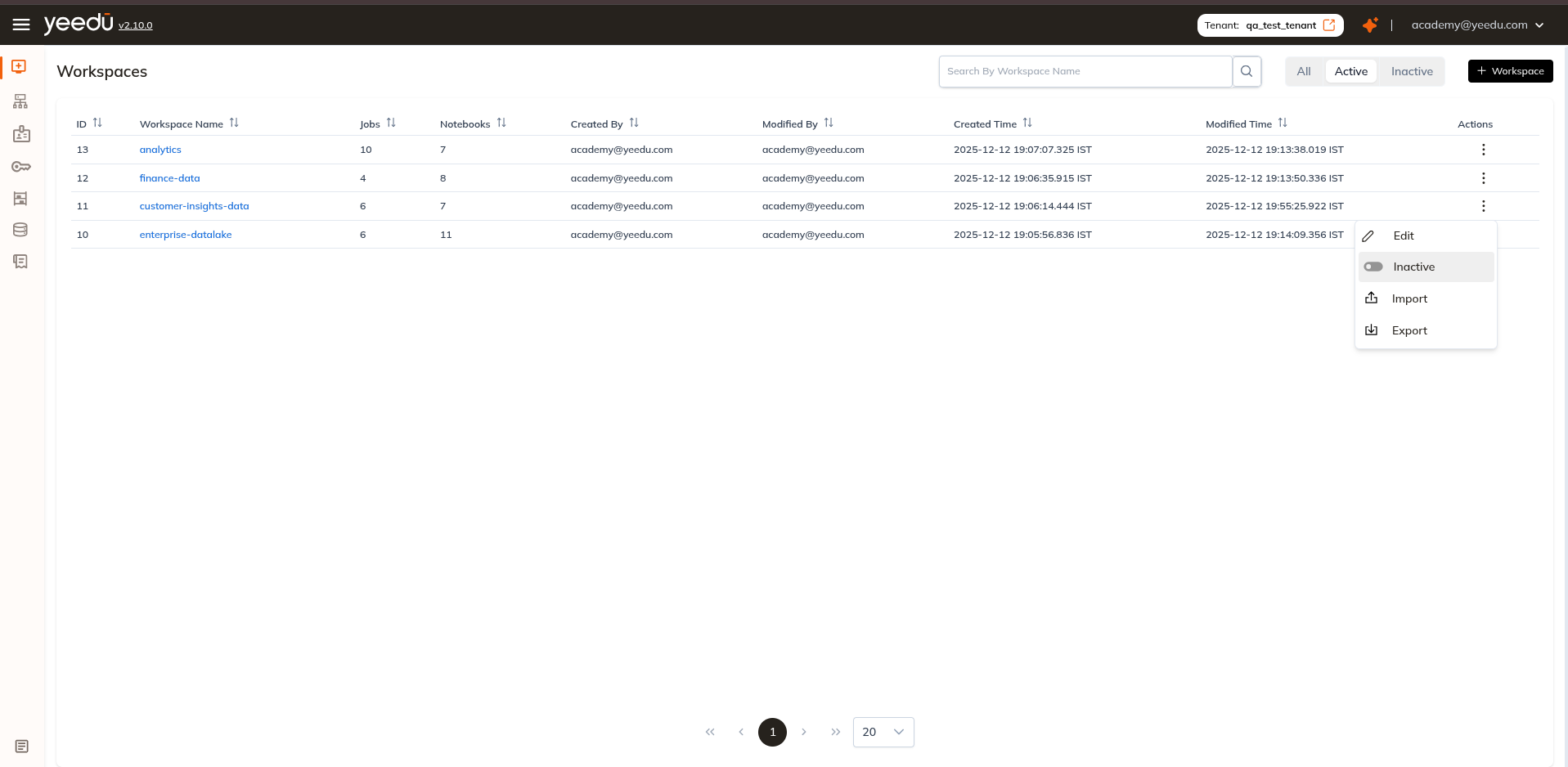
Click the Actions button corresponding to that workspace.
-
Select Inactive from the menu.
-
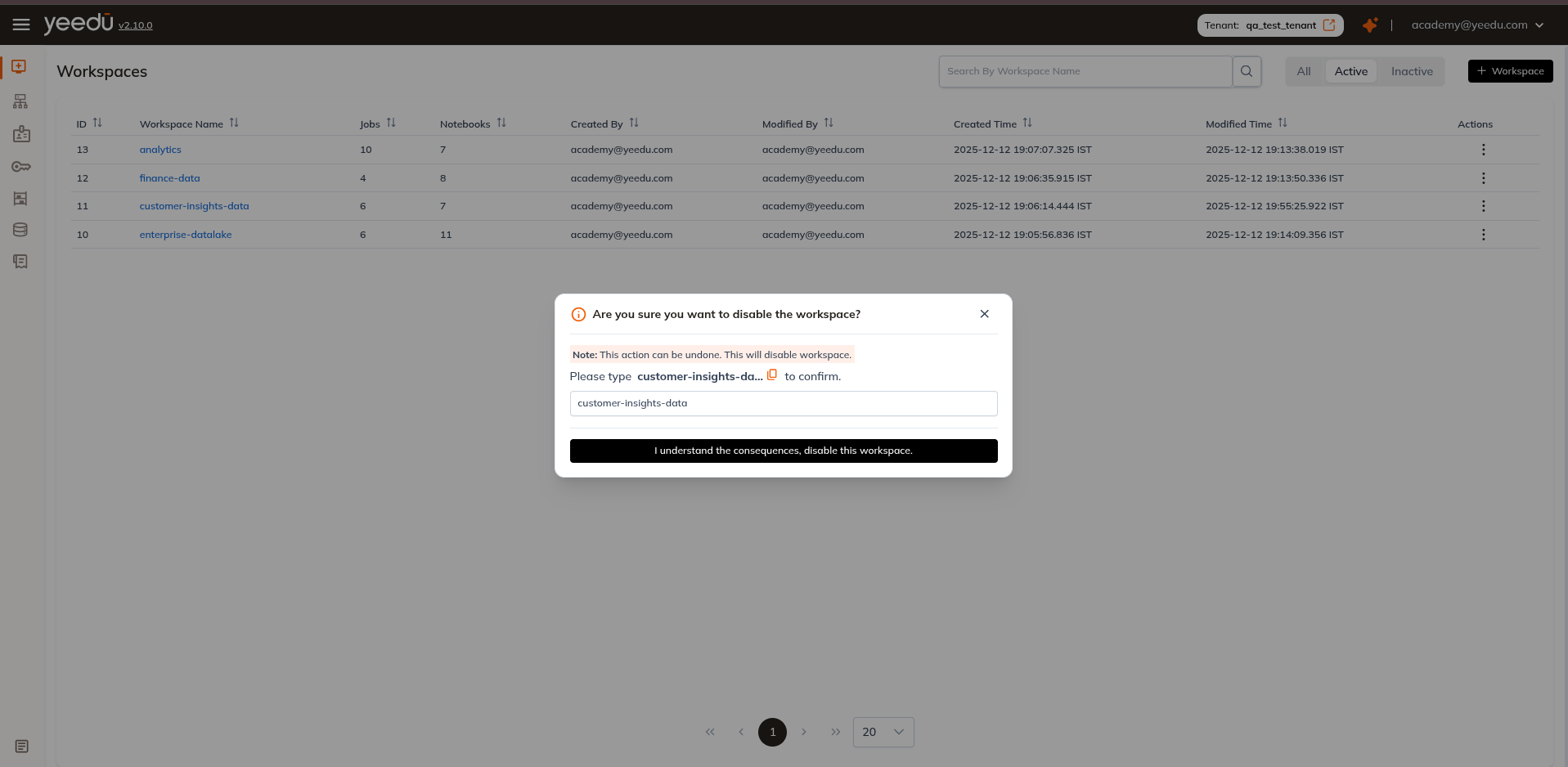
A confirmation dialog will appear, prompting:
"Are you sure you want to disable the workspace?"
Please type<workspace_name>to confirm. -
Enter the exact workspace name and click Confirm.
Once confirmed, the workspace status is updated to Inactive, and it will appear under the Inactive tab.
What happens when a Workspace is disabled
When you disable a Workspace, the following restrictions take effect:
- No new Jobs or Notebooks — You cannot create new Jobs or Notebooks inside the Workspace.
- No edits to existing content — Existing Job and Notebook configurations become read-only and cannot be modified.
- No runs — You cannot start or schedule new Job or Notebook runs.
- View-only access — All users retain read access. You can still view Job and Notebook configurations, run history, and logs.
- Workspace settings locked — The Workspace name, description, and access permissions cannot be changed.
- No imports — You cannot import Jobs or Notebooks into a disabled Workspace.
Disabling a Workspace does not delete any data. All Jobs, Notebooks, files, run history, and configurations are preserved and become fully accessible again when the Workspace is re-enabled.
Enable (Activate) a Workspace
To reactivate a previously disabled workspace:
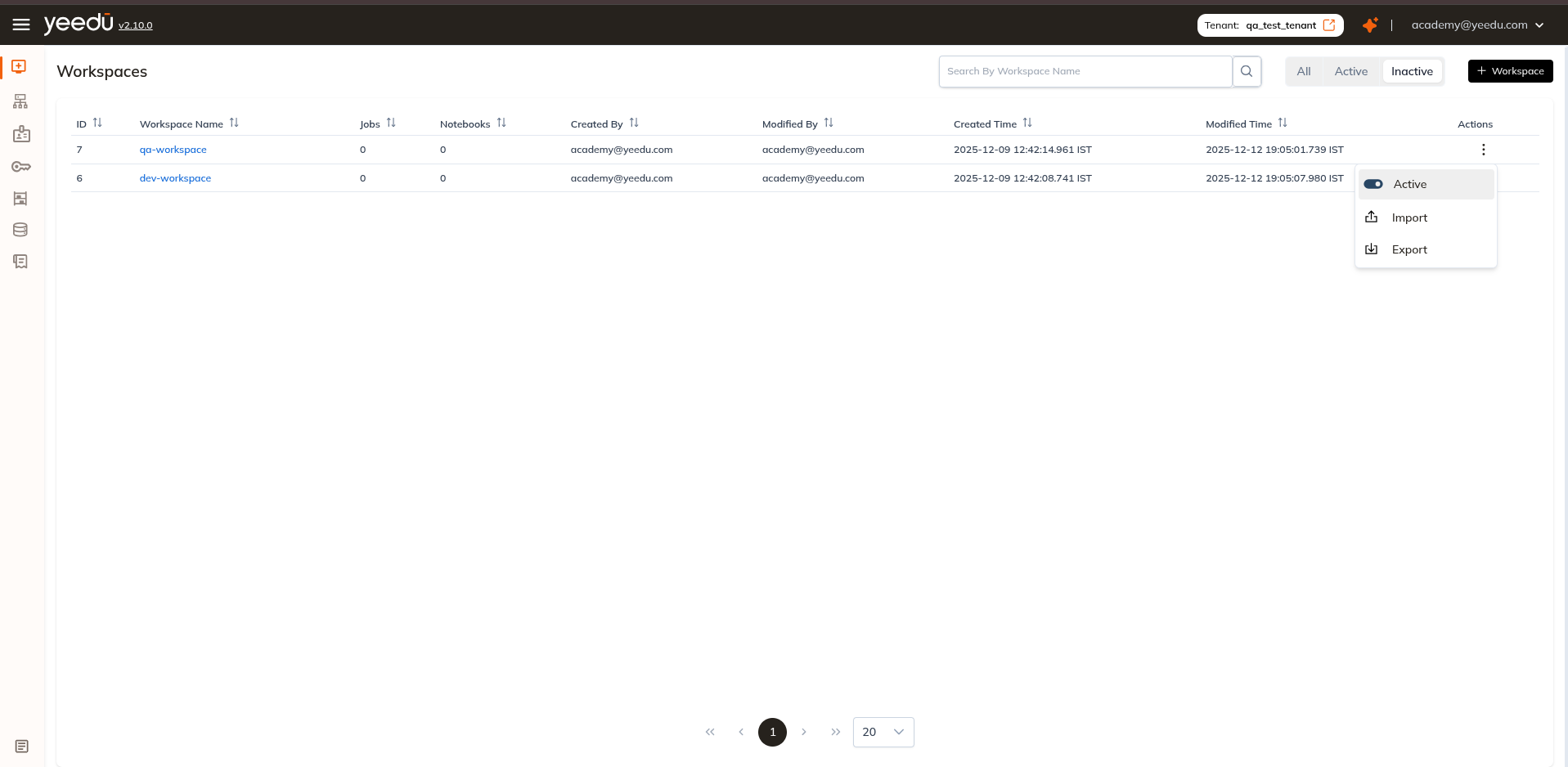
- Switch to the Inactive tab on the Workspace Dashboard.
- Click the Actions button for the desired workspace.
- Select Active.
- The workspace will immediately switch back to active status and appear under the Active tab.
What happens when a Workspace is re-enabled
Once re-enabled, the Workspace returns to full operational mode:
- You can create, edit, and run Jobs and Notebooks again.
- Workspace settings and access permissions become editable.
- Import and export functionality is restored.
- All previously existing content remains intact — nothing is lost during the disabled period.
Workspace Permission Matrix
| Ability | Can Manage | Can Edit | Can Run | Can View |
|---|---|---|---|---|
| Workspace Access Management | ✔ | ✖ | ✖ | ✖ |
| Activate or Inactivate the Job, Notebook, Workspace | ✔ | ✔ | ✖ | ✖ |
| Create or Update Job or Notebook Configurations | ✔ | ✔ | ✖ | ✖ |
| Run or Stop the Job or Notebook | ✔ | ✔ | ✔ | ✖ |
| Read All Job or Notebook Configurations and Runs | ✔ | ✔ | ✔ | ✔ |